 Summary
If you think having a failsafe backup plan is hard, then think again. Pogoplug is set to change all that. Initially started out as a device maker to create private cloud for home users and small businesses, Pogoplug is now offering full fledge, simple to use solutions for both onsite and offsite backup. You don’t have to spend hundreds of dollars to have a foolproof onsite and offsite backup. All you need is just a Pogoplug device and its cloud backup service. Think we are hyping? Check out our review or sign up now.
We all thought that we have seen everything there is in cloud backup industry. After having reviewed nearly 60 companies in the industry, you can’t really blame us for being confident like this.
Then Pogoplug blew our mind away.
We sort of heard about Pogoplug a few years before. But we are advocates of offsite backup as part of your secure backup plan. And Pogoplug was all about creating an onsite home-based private cloud backup using Pogoplug devices. So we pretty much ignored them.
Then a few weeks ago Pogoplug came onto our radar again. This time, not only they piqued our interest, but what we saw also compelled us to sign up and use the service for ourselves. Now, Pogoplug is a must-have device at homes of two of our team members.
What makes Pogoplug suddenly so interesting and a joy to use is its new line of Pogoplug devices as well as Pogoplug’s very own cloud backup service. Combine the two, you have got yourself a pretty nifty onsite and offsite backup service which fit the bill of “3 – 2 – 1 backup plan” we once talked about.
You see, while it is not really difficult to create a plan that follows 3 – 2 – 1 backup plan, it requires some due diligence, purchasing hardware and software (which could be free too), and configuring stuffs. That would easily discourage most beginners.
But Pogoplug changes all that. Their devices are inexpensive, cloud backup service runs smoothly and the setup is really easy.
Don’t take our word for it. We have reviewed extensively on Pogoplug and its services. Check them out after the break.
 Plans & Pricing
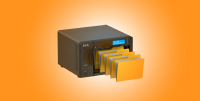
Before we dive into pricing plans of Pogoplug, we will have to explain about Pogoplug first. They started out with small devices that you can plug into your home network and attach a hard drive to it, then it will render your home network as your private cloud storage service. Everything you stored on attached hard drive can be accessible from any other computers with Pogoplug software and authentication to log in to your network. You can also use it as your own personal offsite backup as well. All you had to pay was for the hardware.
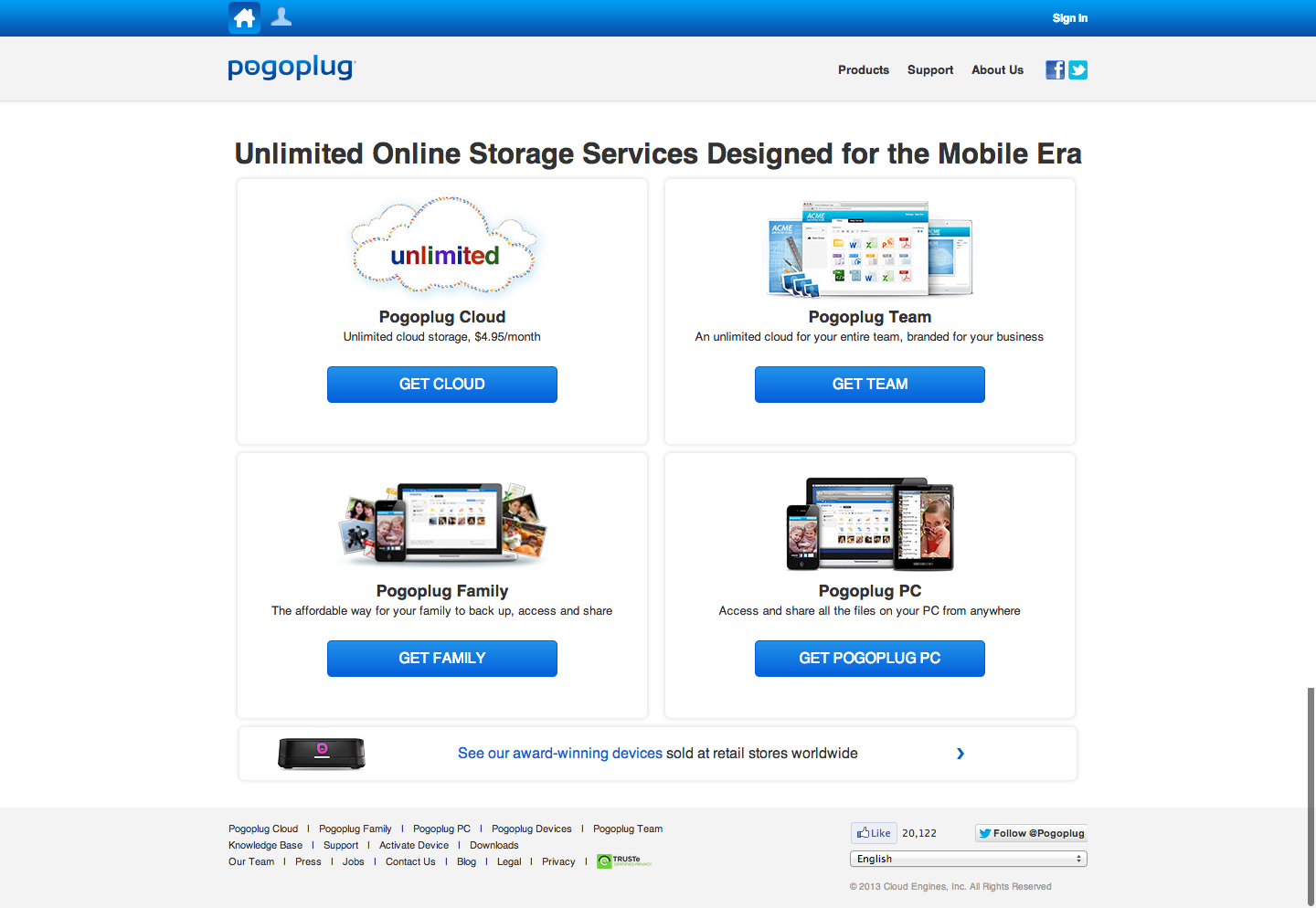
But Pogoplug didn’t stop there. They introduced cloud backup service recently and now they are offering monthly plans for teams, families and individual, on top of their current hardware line. Now they have Pogoplug Family, Pogoplug Team, and Pogoplug Cloud. Let’s take a look at them.
Pogoplug Team
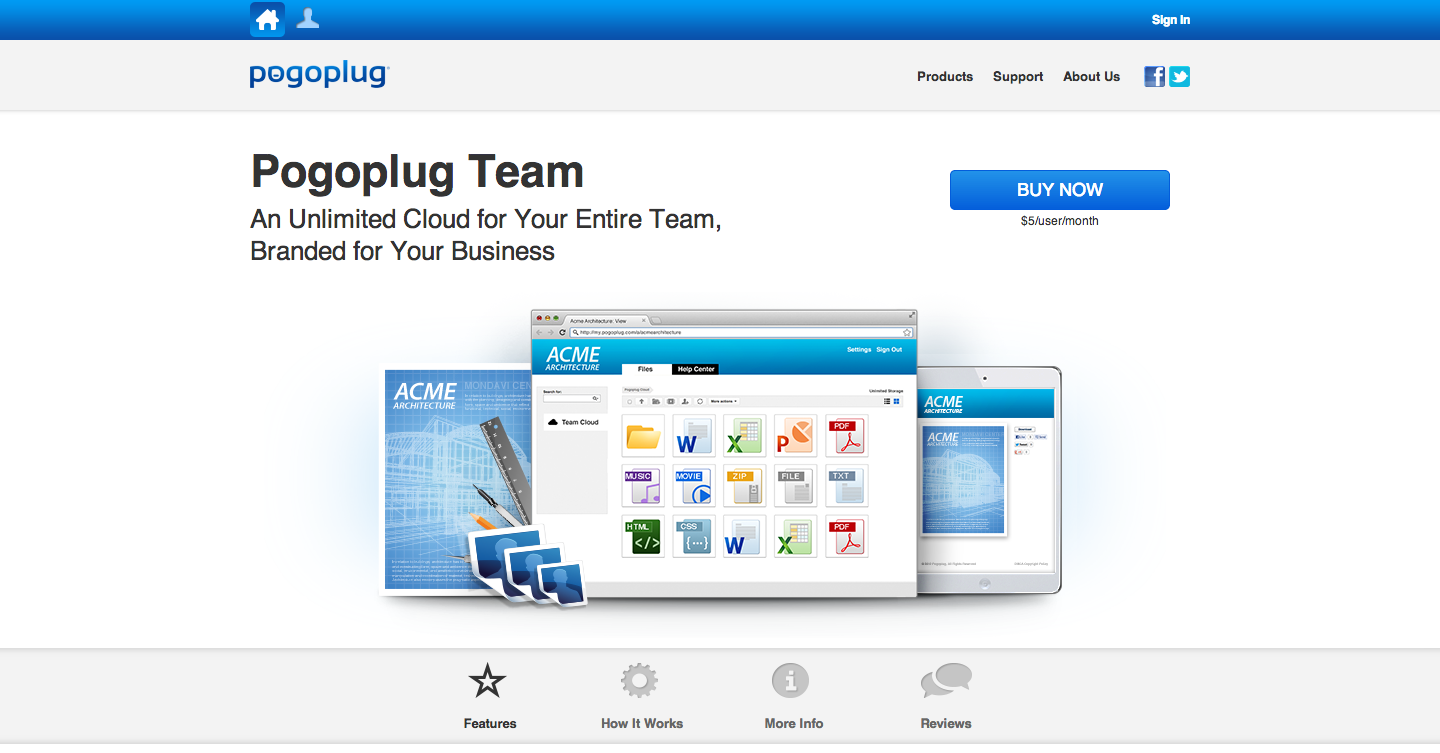
Pogoplug Team is essentially Pogoplug Cloud for teams. You get nice unlimited storage cloud backup and syncing service for $5 a month per user. For that price, you as an admin also get to customize the UI of Pogoplug web interface. You can add as many users as you want, or remove them, and you will pay monthly fee for each users. Pretty simple. They will have access to all folders, or just ones you assign to. They will have their own private folders as well as ability to join shared folders or share their own. Pretty nifty and affordable way for small businesses.
Pogoplug Family
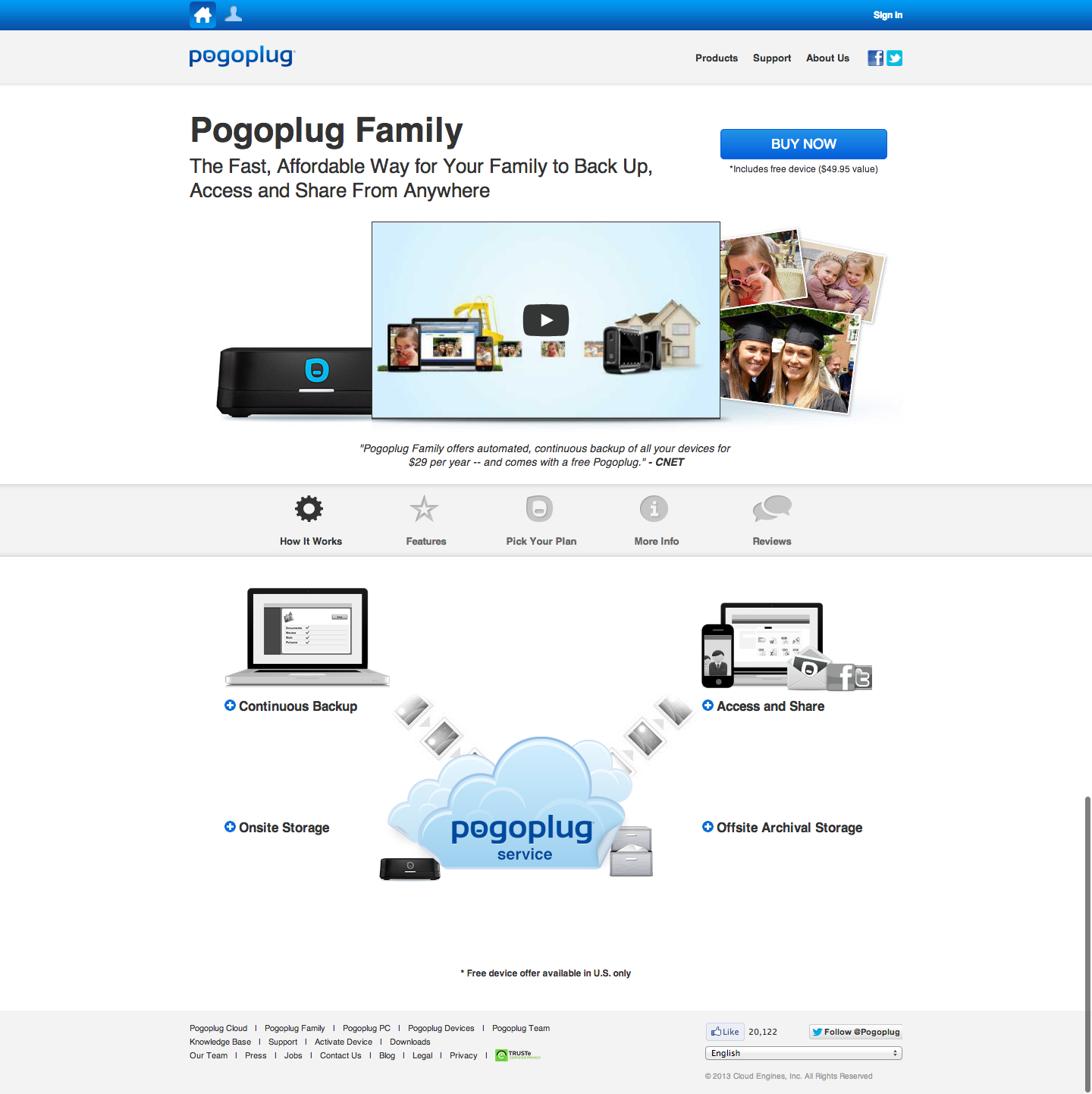
Pogoplug Family is the way to go if you are looking to setup both onsite and offsite backup solution for your family, or even office (they won’t check, we promise). It has both continuous onsite backup using Pogoplug device, as well as automatic offsite backup to Pogoplug Cloud storage which is on Amazon Glacier. So you will get a free Pogoplug device (if you live in US) and cloud storage with pretty high storage quota. Here are the plans.
Pogoplug Family – 3 users in total can backup up to 100GB offsite storage. Free Pogoplug device for US residents.
Pogoplug Family+ – 5 users in total can backup up to 300GB offsite storage. Free Pogoplug device for US residents.
Pogoplug Family Pro – Total of 7 users can backup up to 1TB offsite storage. Free Pogoplug device for US residents.
Once you attach hard drives and SD cards to Pogoplug devices, and in as little as a minute or so, you can start backing up to your own private cloud storage. Then all your backup data or part of them can be automatically and continuously backed up to Amazon Glacier as offsite storage. Pretty nifty, isn’t? This way, you have one local copy, as well as one offsite copy.
Pogoplug Cloud
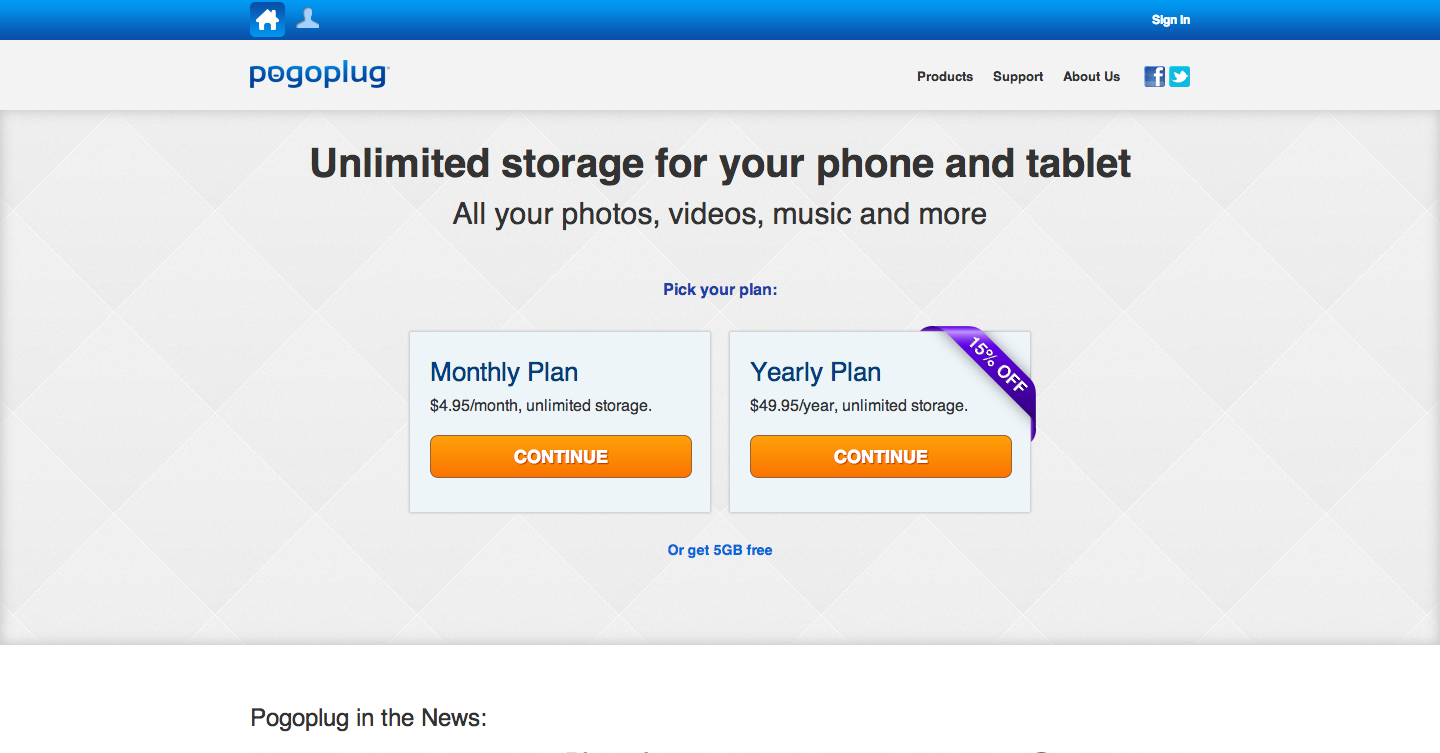
Pogoplug Cloud is their latest addition to Pogoplug Family, and actually, Pogoplug Team and Pogoplug Family won’t exist without Pogoplug Cloud. They offer 5GB free storage, as well as a paid plan which will get you unlimited cloud storage. Price is just $4.95 a month, or if you go with yearly plan, you only pay $49.95 a year.
Price Comparison
What Pogoplug offers for its Family plans is quite unique. There is no other offers on the market so it’s hard to do direct comparison. Closest would be CrashPlan, which offers unlimited cloud storage at $5.99 a month for one user and you can also use its desktop client app to do local backups. If we only look at Pogoplug Cloud, then it is comparable to or cheaper than any other unlimited storage cloud backup companies like Carbonite, CrashPlan, ZipCloud and others.
 Features
Cross-platform Compatible. This is not entirely true statement. You see, Pogoplug desktop client software is compatible with Mac, Linux and Windows IF you are using it with Pogoplug devices. For accessing and backing up to Pogoplug Cloud, the desktop client app will only work on Mac and Windows. We really want to see it on Linux though. There are apps for Android and iOS devices too.
Drag and Drop Upload. Pogoplug Cloud web app fully supports drag and drop uploads for single or multiple files. Actually, that’s the only way you can upload files using Pogoplug Cloud web interface. There is no “Upload” button or “browse”. All you have to do is drag your files over to the browser window with Pogoplug Cloud web app, drop them there and watch it uploading.
Music Player. If you have uploaded your music files to Pogoplug Cloud, then you will be happy to know that you can access them and even play them. You can view your songs by artists, albums, genres or all songs. We tested out by playing 10MB large MP3 file. It streams rather quick. We are impressed!
Photos Album. Pogoplug Cloud web app will automatically recognize every photos you have uploaded and sort them by months and years. You can also view all photos. There is also full screen slideshow view where you can either play it automatically or run through the photos by yourself.
Movies. No, they don’t sell any movies but if you have uploaded any video files, Pogoplug Cloud web app will automatically recognize them and sort them by months and years. Just like with photos, you can then load and view each one. Speed is impressive, even on a 6mbps ADSL line.
Cloud Sync. This is basically a syncing of your home onsite backup (using Pogoplug device) to Pogoplug Cloud. It is not the same as Dropbox syncing.
Continuous & Automatic Backup. Pogoplug desktop client app will do continuous and automatic backup, once you activate it. You have to at least activate it once for both onsite and cloud backups. After that, all you have to do is wait and let it run its own while you are using your computer. It is quite light too.
 Customer Service
Pogoplug has pretty good help center which is essentially a knowledgebase. They also offer email and chat support for paid customers. If you are on Pogoplug Family Pro, then they will offer telephone support as well. Their cloud service is pretty easy to use so there is no need to look for customer support. If you are using Pogoplug devices for first time though, then you might need technical assistant especially if you are not very proficient with computers.
The Process
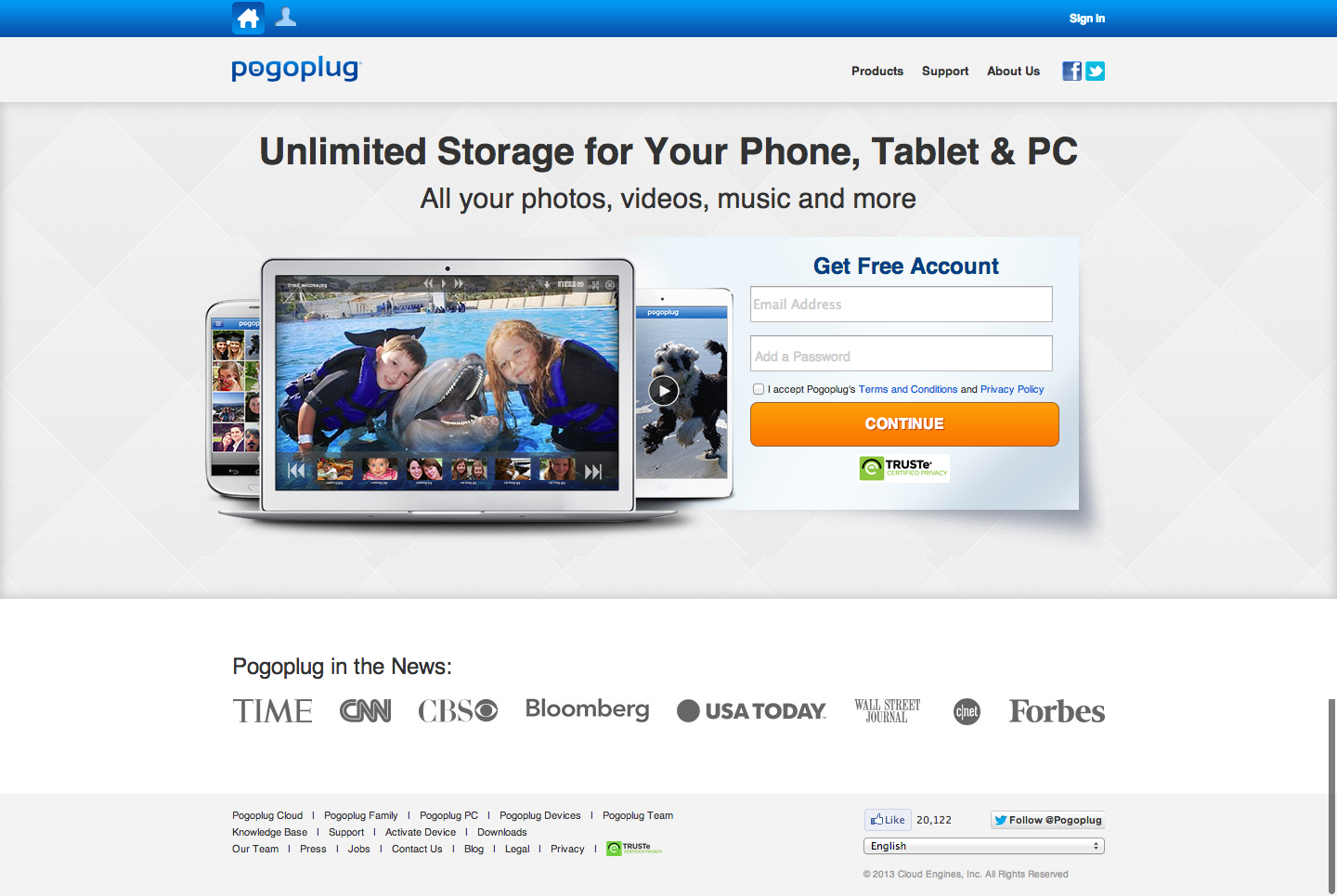
Signing up for Pogoplug Cloud is ridiculously easy. In fact, their home page is one key call to action which is to sign up a free account (you get 5GB). So it is obvious that the team behind Pogoplug is now pushing their cloud backup service rather than the devices now. You only have to key in your email and password, then you will be brought to a page where you can choose to go with free plan or paid plan.
There is only one paid plan, and you can choose to pay either monthly or yearly. You can choose free plan by clicking at the small link at the bottom.

If you chose to go with paid plan, you will be brought to this page where you pick monthly or yearly payment and make payment. We really wish they would have PayPal as one of the payment methods.
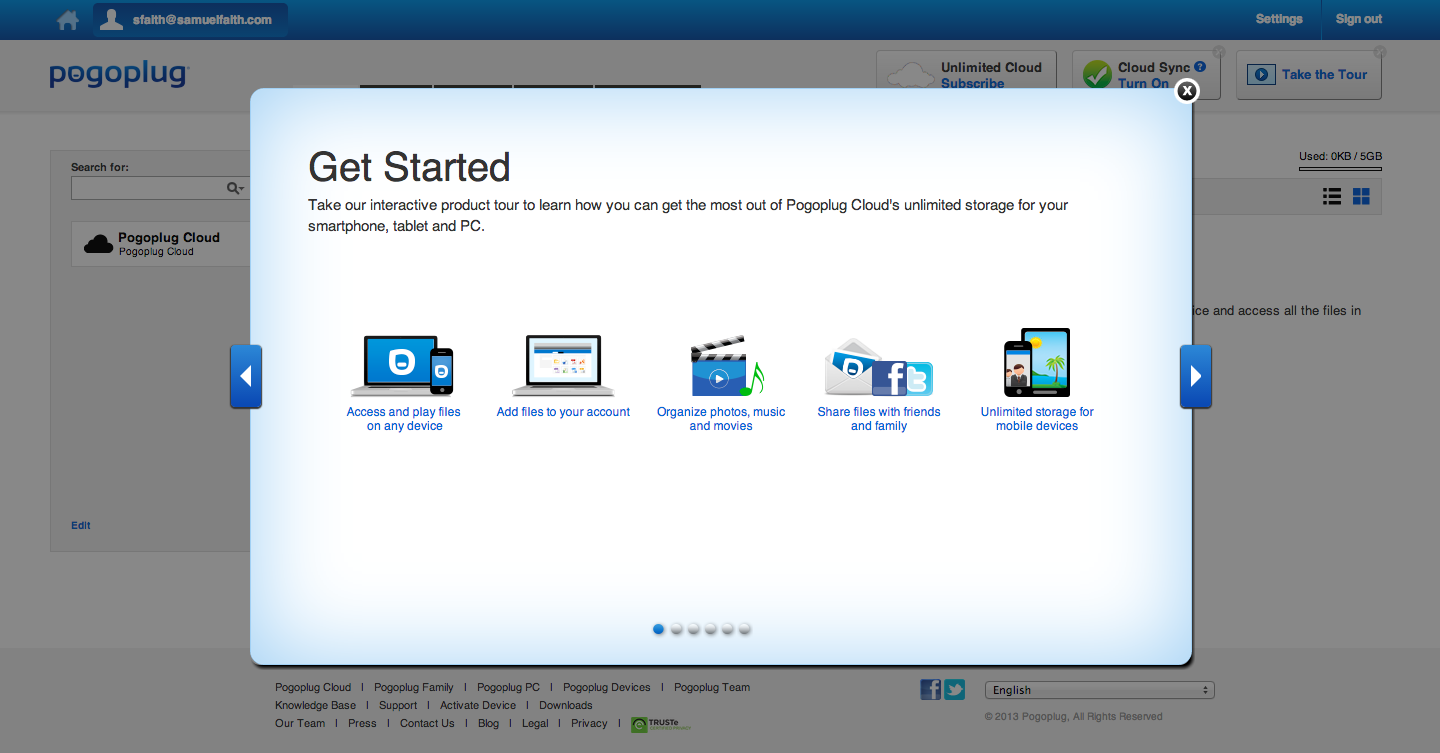
Since we decided to keep things free by choosing the free plan, we are welcomed with a Getting Started tour as long as we picked the plan. Kudos to Pogoplug team for not asking us to activate account via email and such. Really easy to sign up and start using the service. Go on, watch Getting Started tutorials which are pretty nifty.

This is the dashboard you will get before you upload any files. It tells you that you can download mobile apps, drag and drop files to upload and pretty much that’s it. Simple, clean and straightforward. But what we don’t get is that they never point out the existence of Pogoplug desktop client software, which is what everyone will want to use if they are going to do serious backing up of their computer onto Pogoplug cloud. They could have mentioned that along with the mobile apps they were talking about. But alas, no. We have to go to tiny Downloads link at the footer navigation menu.
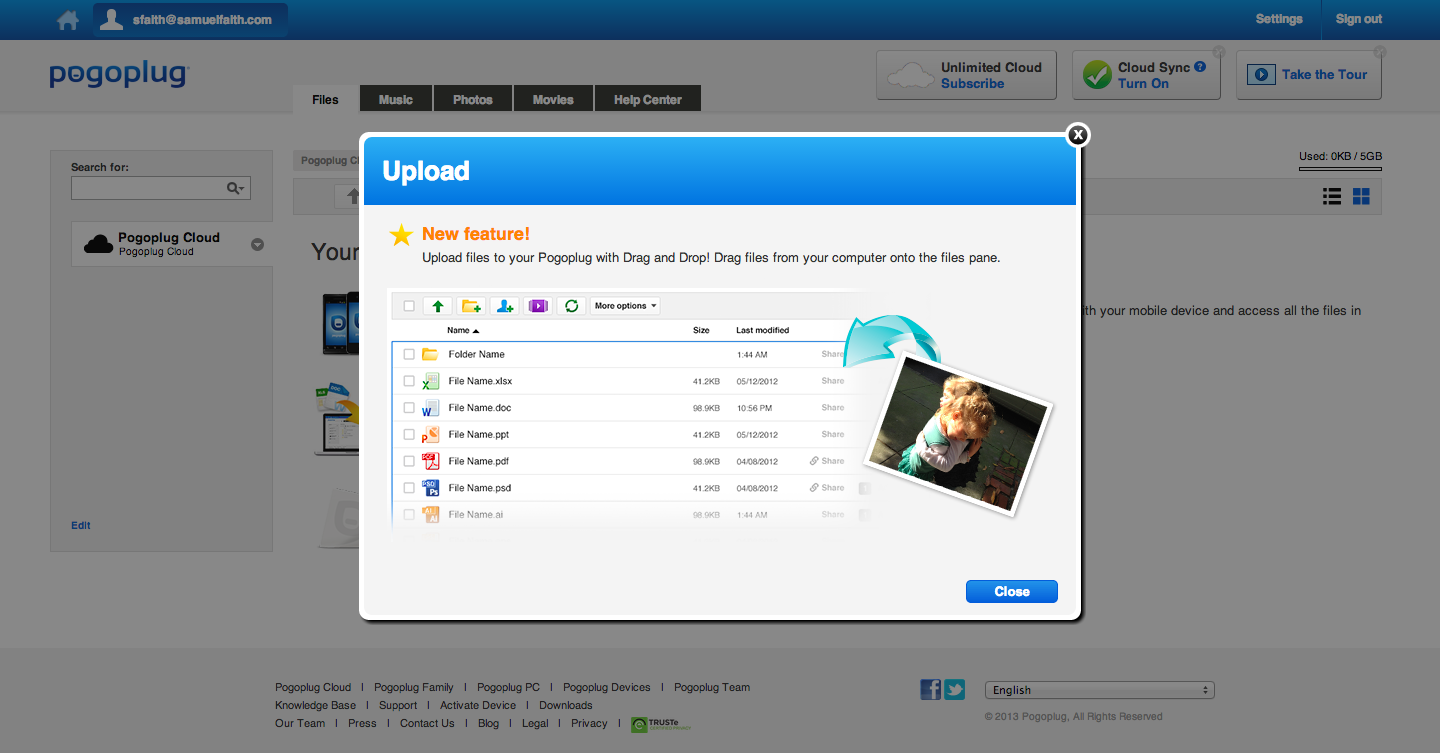
We click on “drag and drop” link just out of curiosity. And this is basically a visual guide on what you can achieve. Yup, just drag your files and drop onto the browser window with Pogoplug web app loaded. Simple as that. Either that or use Pogoplug desktop client app. There is no other way to upload your files onto the cloud.

There is a button called Cloud Sync at the top right and it is basically a reminder that the awesome Cloud Sync feature (which mirrors your onsite backup to offsite backup) is available with paid plans and a Pogoplug device. Then there is also an Unlimited Cloud button which reminds you that unlimited storage is available if you subscribe. Fair enough. Gentle way to remind us without being annoying. Good call, Pogoplug. Good call.

We started uploading files by drag and drop method, and found that file uploads on browser are quite fast. We were on 6mbps ADSL which give us around 500 to 600kbps real download speed. 10MB large MP3 files were uploaded in matter of a couple minutes or so per song. Images were uploaded almost instantly. Then above screenshot is what you will see if you want to take al ook at all files.
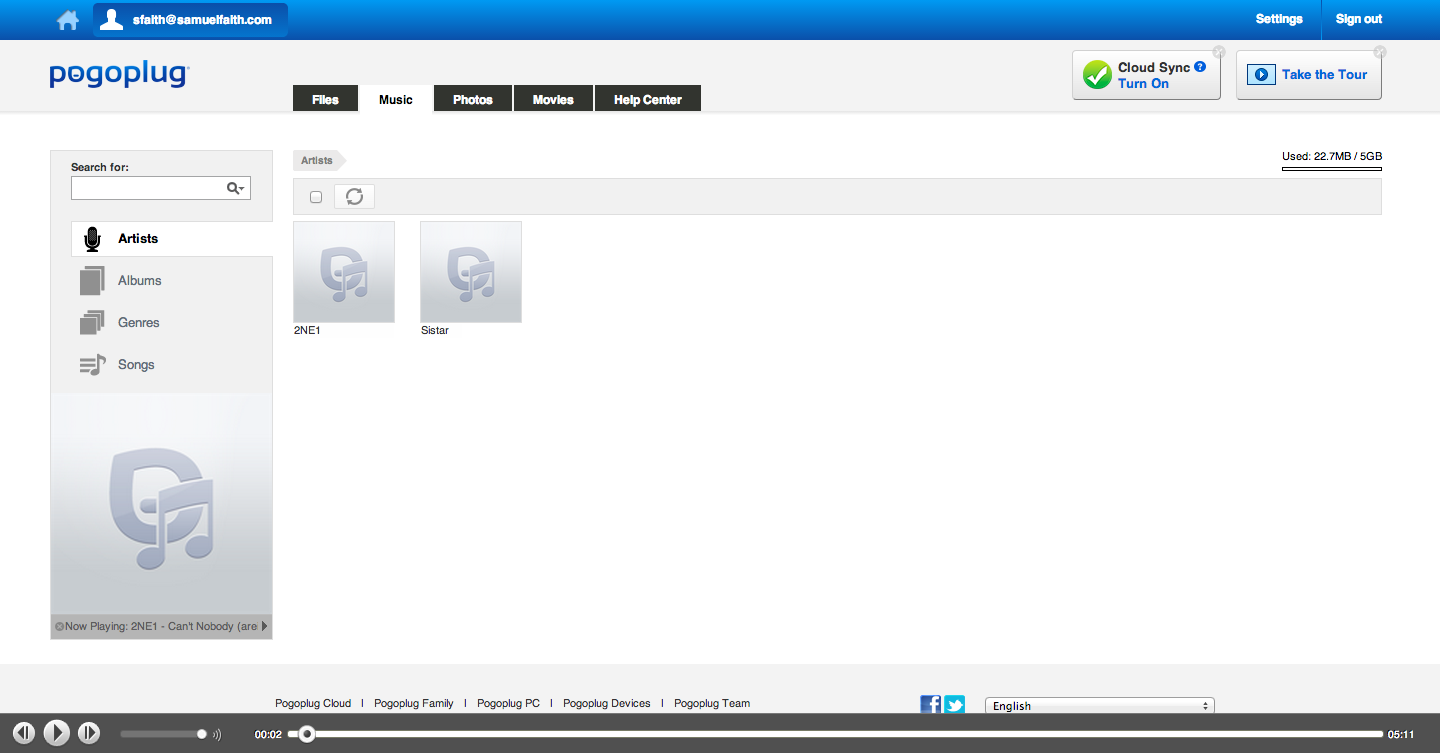
Go to Music tab and you can view your music files by artist, album, genre or just list all files. You can even play them from there directly. 10MB large files play pretty quick, without having to pause and buffer. Pretty fast.
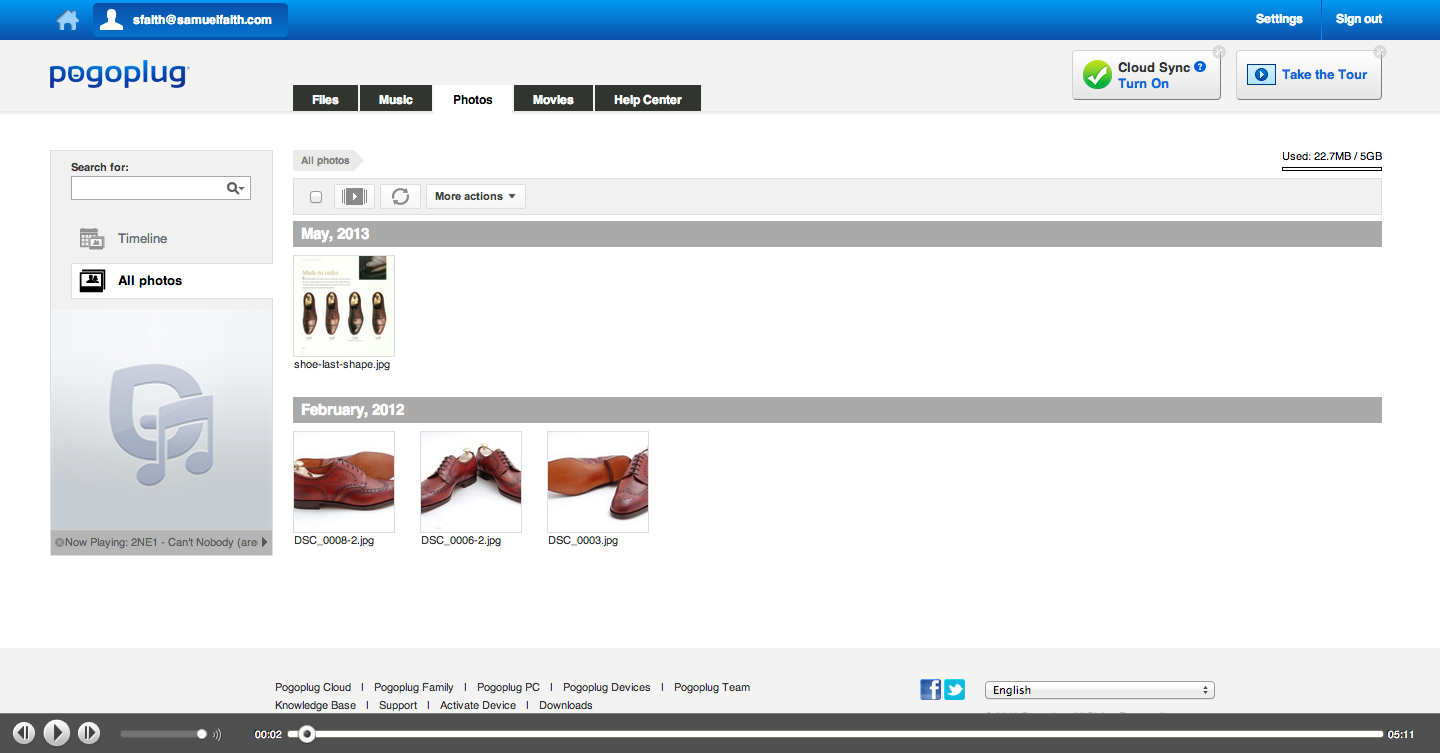
Photos tab will show you all image files you have uploaded. They can be sorted by time, or you can view all of them. You can click on each to view in larger format or you can also go for slideshows.
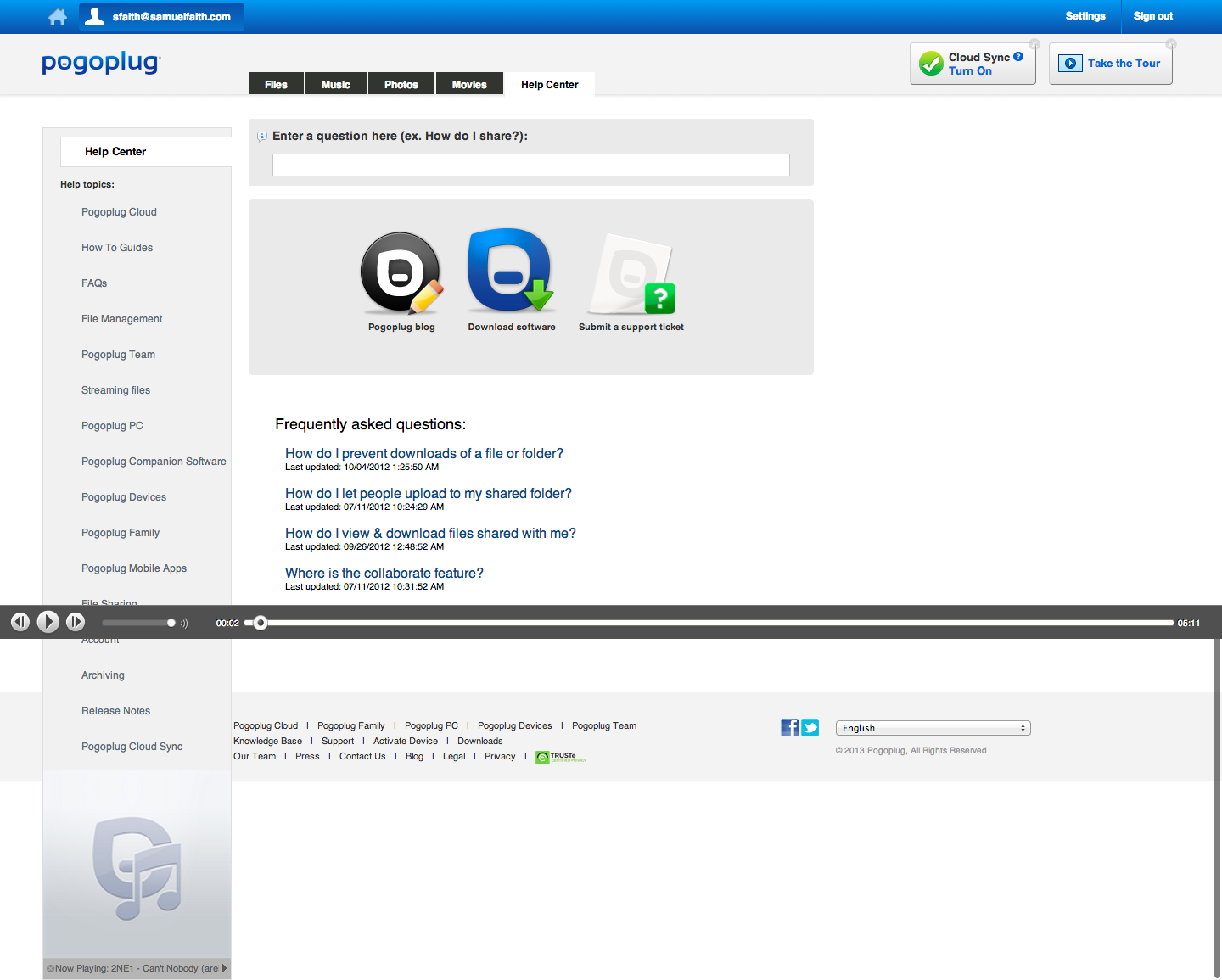
Help Center is where you go if you want to get answers to some questions you may have about Pogoplug Cloud. It is quite comprehensive.
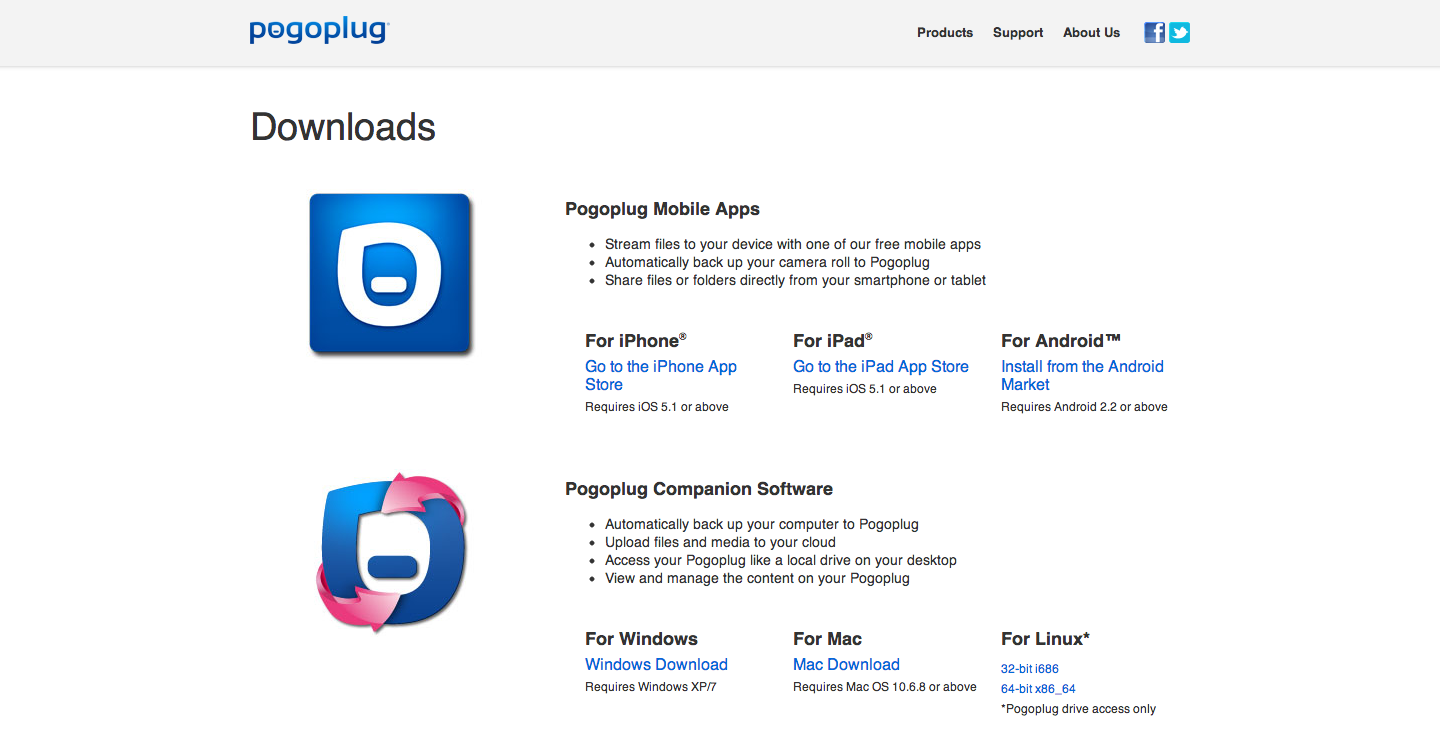
Since Pogoplug doesn’t tell us to download desktop client app, we took matters into our hands and went to Downloads page via footer navigation menu. In this page, you can see the links to apps for iPhone, iPad and Android. Then there are download links for Mac, Windows and Linux as well. Installation of the desktop client app is pretty easy and straightforward. Download file is just around 16MB so it is quite lightweight. After installation, it takes only around 25MB on hard drive.
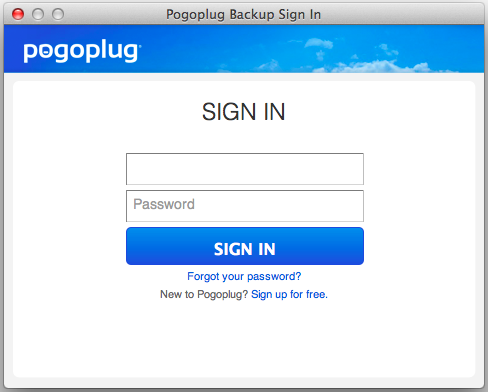
Right after you install, you will be welcomed by a sign in box. Just key in your email and password and you are set.
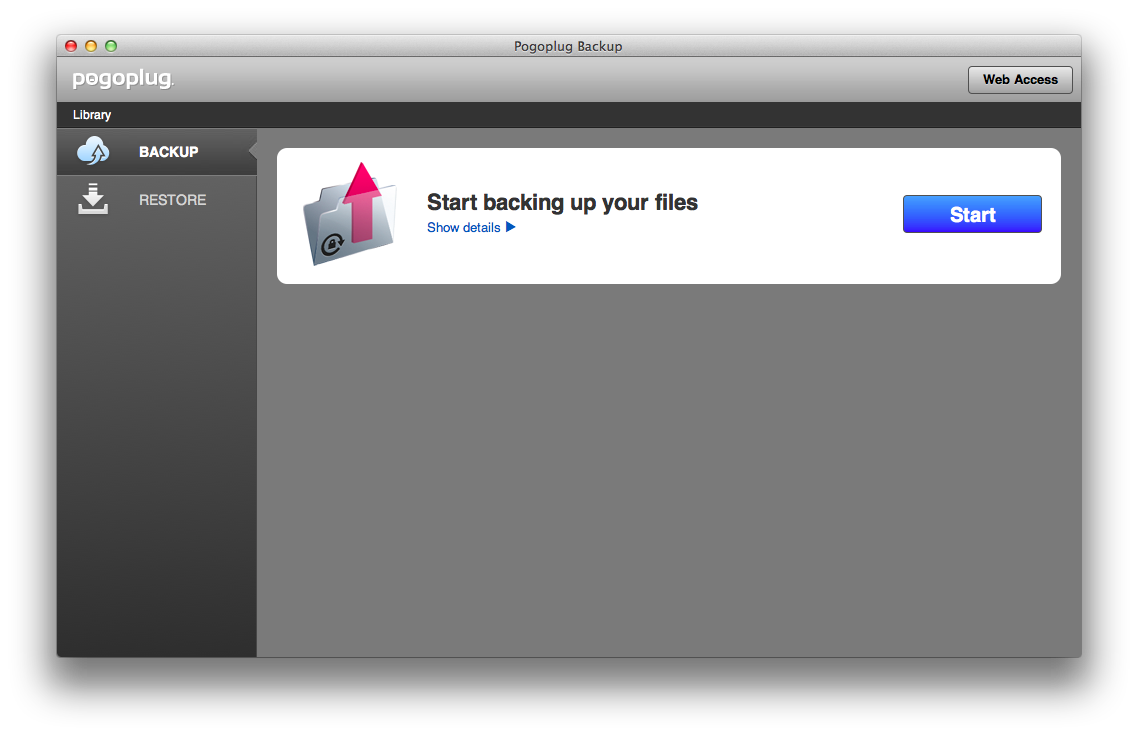
After you log in, you will be greeted by a real simple interface. Here, there are only Backup and Restore available. We imagine there will be a few more options if you have a Pogoplug device attached, but for cloud backup this is it. Above is the view for Backup tab.
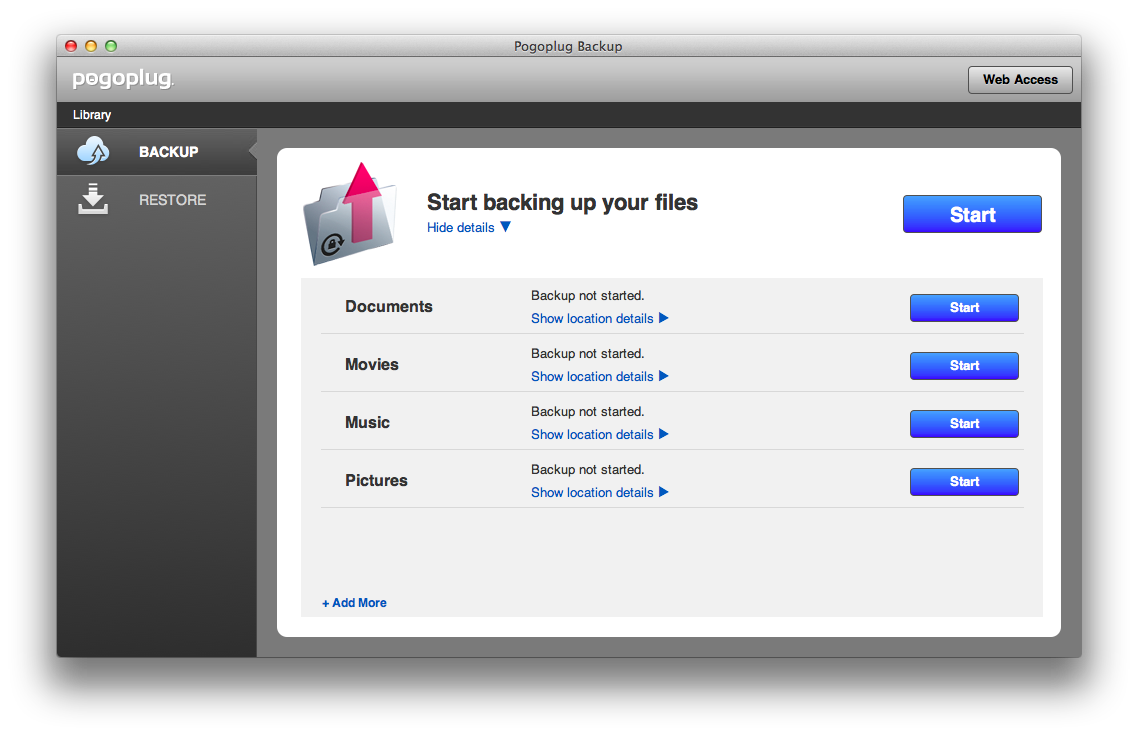
If you click on Show Details, you will see each folders Pogoplug has pre-selected for backing up. You can start backup for individual folders, and you can add more too. If you click Start button at the top, it will begin backing up every folders you put in there.
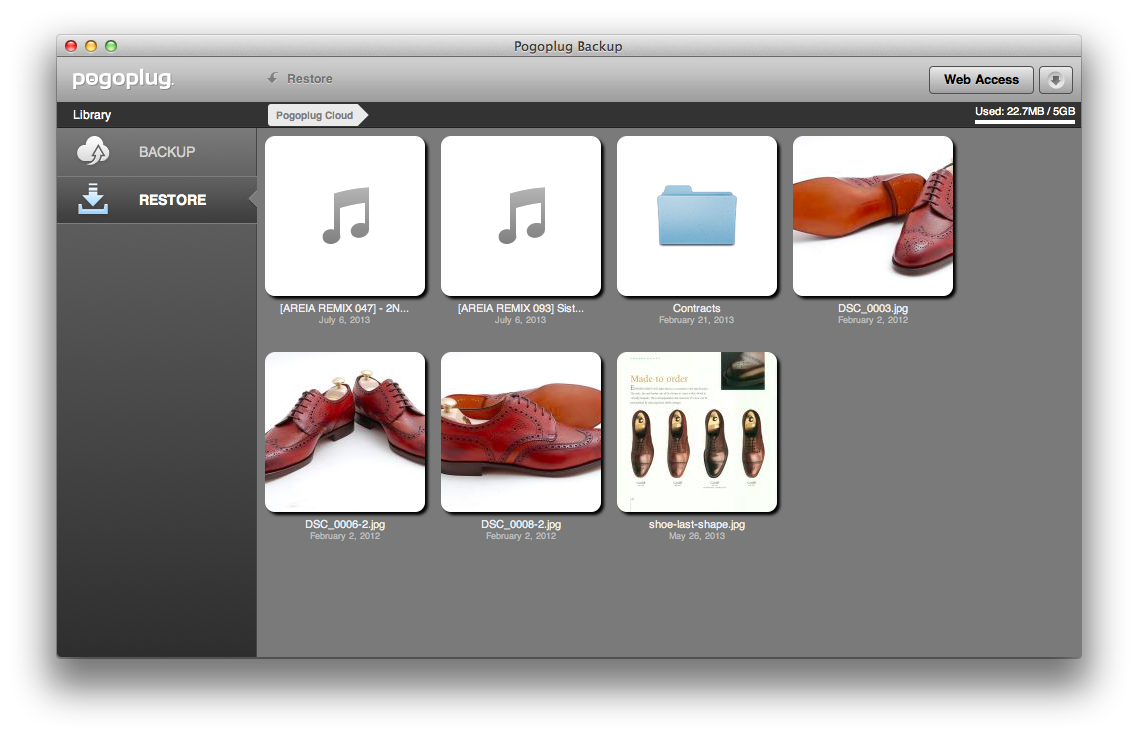
Restore tab is also really simple. You will see all your files you have uploaded. All you have to do is double click any folder or file you want to restore, and choose path. This is where you can also browser your files, but this desktop client app lacks the ability to view images as slideshow, play music and video files. For those, you will have to use web app.
Conclusion
Pogoplug is definitely interesting and we really like how they make having both onsite and offsite backup so simple and affordable. Now you don’t have to hunt down hardware and software to create a failsafe backup plan. All you need is Pogoplug software, its cloud backup service and some hard drives attached to a Pogoplug device. Then you are set.


While I initially was a big fan, do NOT expect any support. I had a hard drive crash. After 3 weeks of trying to get assistance from their support, I am still without my backup files.
Doesn’t do a lot of good to have the files on the cloud when you cannot get them when needed.